Guide
How to Format JSON Before Pasting on Mac
You copied a minified JSON blob. You need to read it. Here are all the ways to format it on Mac — from browser tabs to the one that happens inline before you paste.
Written by the Pastery team.
The problem happens dozens of times a week
You copy an API response from a browser network tab, a log file, or a terminal command. It comes back as a single unbroken line: {"status":"ok","data":{"id":1,"name":"test","items":[{"id":1}]}}. You need to read it, understand it, or paste it into documentation. But first you have to make it human-readable.
This is a small friction point that adds up. The average developer hits it multiple times per day. Here are all the ways to handle it.
Option 1: A browser tab (the default everyone uses)
Sites like jsonformatter.org or jsonlint.com accept raw JSON, format it, and let you copy the result. Works from any browser, always available, requires no setup. You can also use our free JSON formatter tool — no third-party site required. For related clipboard prep, see the URL encoder and character counter.
The cost: you switch context to a browser, paste, wait for the page, copy again, switch back. About 15–20 seconds each time. Across a workday thats not nothing, and you're also pasting potentially sensitive API responses into a third-party website.
Option 2: Terminal with jq
jq is a command-line JSON processor. If you have Homebrew: brew install jq. Then to format whatever is on your clipboard:
pbpaste | jq . | pbcopy
This reads from the clipboard (pbpaste), formats it (jq .), and writes the result back to the clipboard (pbcopy). Fast if you're already in a terminal. Less convienent if you're in the middle of something else and have to switch to a terminal window.
Option 3: VS Code
Open a new file in VS Code, set the language to JSON, paste your content, and press ⇧⌥F to format. Works well, respects your indentation settings. Requires you to already have VS Code open or be willing to switch to it.
Option 4: Pastery — inline before you paste
This is the approach that eliminates the context switch entirely. Pastery is a clipboard manager that shows a transform toolbar when you hover over any text clip before pasting. One of those transforms is Format JSON.
The workflow: copy the minified JSON from wherever, open Pastery with your keyboard shortcut, hover over the clip, click Format JSON, paste. The formatted version lands exactly where your cursor is. The original minified version stays unchanged in your clipboard history in case you need it.
No browser tab. No terminal. No app switch. You stay in the document or editor you're working in. For a full breakdown of what developers need from a clipboard manager, see our best clipboard manager for Mac developers guide.
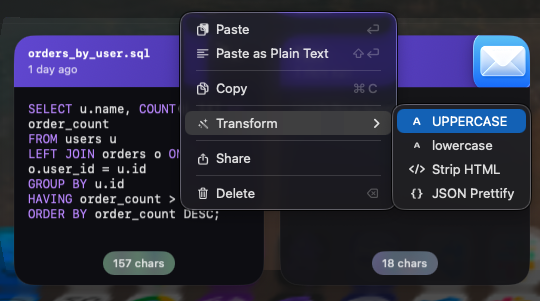
The other transforms that help the same workflow
If you're dealing with JSON regularly, the same workflow pattern applies to other common developer friction points that Pastery handles:
- Minify JSON — the reverse: compact formatted JSON back to a single line before pasting into a config file or API call
- Decode URL encoding — turn
Hello%20World%21intoHello World!before pasting - Strip HTML — paste the plain text from HTML markup without the tags
- Uppercase / lowercase / title case — fix casing before it lands in your code or document
- Trim whitespace — remove leading and trailing spaces from a clip that came from a web page or PDF
Frequently asked questions
How do I format JSON before pasting on Mac?
Fastest method: use Pastery. Copy the JSON, open Pastery, hover over the clip, click Format JSON, and paste. No app switch needed. Alternatives: browser tools like jsonformatter.org, or pbpaste | jq . | pbcopy in Terminal.
What is the fastest way to pretty-print JSON on Mac?
With Pastery: copy, open clipboard history, apply Format JSON transform, paste. Done inline without switching context. With jq in Terminal: pbpaste | jq . | pbcopy — also fast if you're already in a terminal.
Can I format JSON from the terminal on Mac?
Yes. Install jq via Homebrew (brew install jq), then run pbpaste | jq . | pbcopy. This reads from clipboard, formats it, and writes the result back — ready to paste wherever you need it.
Does VS Code format JSON automatically?
Yes. Paste into a .json file and press Shift+Option+F to format. Or right-click → Format Document. Works well if VS Code is already open; requires a context switch if it isn't.