Guide
Best Clipboard Manager for Mac Developers in 2026
Developers copy more things per day than almost anyone else. Code snippets, API responses, terminal output, error messages, hex values, base64 strings. Most clipboard managers are built for general use. Here's what actually fits a development workflow.
Written by the Pastery team.
What developers actually copy all day
Track your clipboard usage for a single workday and the pattern becomes clear: you copy a lot, and it's rarely just plain text. A stack trace from a browser console. A JSON response from an API. A hex color from a design spec. A terminal command from documentation. A base64 string that needs decoding before it's useful.
General-purpose clipboard managers handle plain text well. The developer-specific needs — code formatting, image content search, deep history, transform before paste — are where most of them fall short.
What a dev clipboard manager needs to do well
Code handling
Monospace fonts and syntax awareness aren't strictly necessary — you're pasting into an editor that handles that. What matters is that code pastes cleanly without whitespace corruption, and that you can distinguish between ten similar snippets in your history. A good preview of the first few lines is enough.
Screenshot OCR
This one is underrated. Developers take a lot of screenshots: error messages, browser console output, logs, UI bugs to report. Later, you can't find the screenshot because you don't remember when you took it and Finder has no idea what's inside a PNG. A clipboard manager with OCR indexes the text content of every screenshot at copy time, making it searchable by what's in it.
Text transforms
How many times a week do you copy a URL-encoded string and have to open a browser tab to decode it? Or copy a minified JSON blob and manually format it before it's readable? These are small frictions that add up alot over a year. The right clipboard manager eliminates them with a single click. For quick browser checks, try our free URL encoder, JSON formatter, and case converter.
Deep, searchable history
You copied that curl command from the docs three days ago. You need it again. A 200-item limit or a list you have to scroll through is not sufficient. You want fast full-text search across everything, going back weeks.
Privacy
Developers copy API keys, tokens, and database connection strings. Your clipboard manager should not be shipping that to a cloud service. Local-only storage is non-negotiable for professional development work.
The options
Maccy — best free option
Maccy is free, open-source, keyboard-first, and fast. Press ⌘⇧V, type a few characters, press Enter. Under a second from shortcut to paste. It's what a lot of developers reach for first because it's free and gets out of the way.
The gap shows up quickly though: no image thumbnails (screenshots show as a label like "Image (312 KB)"), no OCR, no text transforms, no per-app filtering. If your work involves mostly code and URLs, Maccy is fine. The moment you start needing to retrieve error screenshots from earlier in the week, it stops being enough. See our detailed Pastery vs. Maccy comparison.
Raycast clipboard history — good if you're already invested
Raycast includes clipboard history as part of its launcher. If you're already using Raycast for app switching and search, the clipboard history is there and it's decent — handles text and images, supports search, integrates with AI commands. The downside: no OCR search inside images, no text transforms, and no per-app date filtering. Read our Pastery vs. Raycast comparison for the full breakdown.
Pastery — the recommendation for dev workflows
Pastery is built in native Swift, stores everything locally, and is focused on retrieval. For developers specifically, three things stand out:
- OCR on every screenshot. Paste a screenshot, Pastery indexes it with Apple Vision in the background. The next day you can search for "CORS error" or "undefined is not a function" and find the screenshot in seconds.
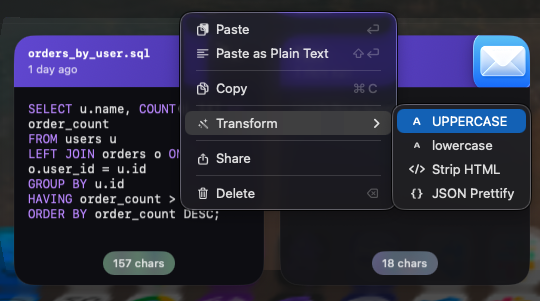
- Text transforms. Hover over any text clip before pasting: format JSON, minify JSON, decode URL encoding, strip HTML, change case, trim whitespace. No separate tool. No browser tab. The transform is applied to the pasted version; the original stays unchanged in history. See how to format JSON before pasting on Mac for the full workflow.
- Overview Mode. Filter by source app (just show what you copied from Terminal, or from VS Code), by content type, by date range. Finding a specific snippet from a specific tool on a specific day takes seconds.
Feature comparison
| Feature | Maccy | Raycast | Pastery |
|---|---|---|---|
| Price | Free | Free (Pro $8/mo) | $2.99/mo · $24.99/yr · $59.99 lifetime |
| Local-only storage | Yes | No (Raycast cloud) | Yes |
| Image history | Label only | Thumbnails | Thumbnails + OCR |
| OCR image search | — | — | Apple Vision |
| Text transforms | — | — | JSON, URL decode, case, more |
| Filter by app / date | — | — | Yes |
| Password manager safety | Yes | Yes | Yes |
| Open source | MIT | — | — |
The verdict
If your clipboard needs are genuinely text-only and you want free, Maccy is perfectly fine. If you're already deep in the Raycast ecosystem, its clipboard history is adequate for recent items.
If you copy error screenshots, work with JSON or encoded strings, or need to retrieve something from earlier in the week — Pastery handles all of it and nothing else comes close on macOS right now. The 7-day free trial doesn't require a credit card.
Frequently asked questions
What is the best clipboard manager for Mac developers?
Pastery for 2026. Native Swift, local-only, OCR search inside error screenshots, JSON formatting and URL decoding before paste, and app-level filters. Maccy is the best free option if your work is text-only.
Should I use Raycast or a separate clipboard manager?
If you're already a heavy Raycast user, its built-in history is decent for recent items. But it has no OCR, no transforms, and no per-app filtering. If clipboard management is a real need in your workflow, a dedicated tool covers significantly more ground.
Can Pastery format JSON automatically?
Yes. Hover over any text clip before pasting and a transform toolbar appears. Select Format JSON and Pastery pretty-prints the minified blob before it reaches your editor. The original clip stays unchanged in history.
Does Pastery record API keys and tokens?
Pastery detects when a password manager clears the clipboard and skips recording those items. For anything else you copy — including tokens — it records normally. All history is stored in a local encrypted database, never transmitted anywhere.
Is Maccy good enough for developers?
For text-only workflows, yes. It's free, fast, and stays out of the way. The gap appears when you need to retrieve an error screenshot, decode a URL, or find something from a specific app three days ago. Those needs require Pastery.