Guide
How to Search Inside Screenshots on Mac
You remember copying a screenshot of an error message. You don't remember when. Finder can't help. Spotlight won't find text inside images by default. Here's what actually works.
Written by the Pastery team.
Why Finder and Spotlight can't help
When you take a screenshot on a Mac, it saves as a PNG file. The name is something like "Screenshot 2026-05-14 at 09.32.11.png" — a timestamp. Finder can search by that name. Spotlight can find it by name. Neither can read what's inside it.
Spotlight does index some file contents: PDFs, Word documents, text files. Images are not included. The pixels are there, but the text those pixels represent is invisible to the search index. You can only find a screenshot by when it was taken — which is usually not what you remember.
macOS does have Preview's text recognition feature (right-click an open image, "Show Text"), and the Photos app can search image content. But those only work on files stored in specific locations. A screenshot you copied from a browser and never saved to a file doesn't exist anywhere Finder can reach. If you need clipboard-level search, see how to access clipboard history on Mac.
What Apple Vision OCR actually is
Apple Vision is a framework Apple ships as part of macOS that provides on-device image understanding — face detection, object recognition, and optical character recognition (OCR). The OCR component reads images and extracts the text they contain, entirely on your Mac with no network connection.
It's the same technology that powers Live Text in iOS and macOS — the feature that lets you tap on text in a photo and copy it. The framework is available to any Mac app, and it's fast enough to run in the background without being noticeable.
How Pastery uses it to make your clipboard searchable
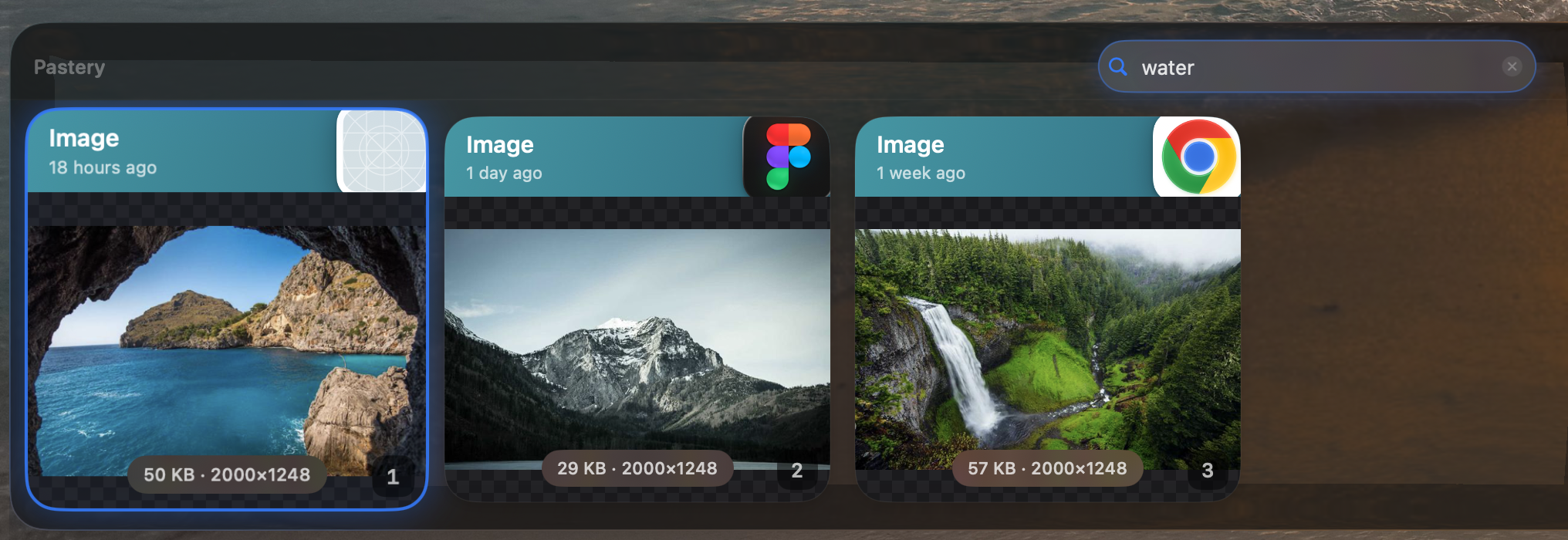
Every time you copy a screenshot — from a browser, from a design tool, from a video call, from anywhere — Pastery stores it and immediatelyqueues it for OCR processing on a background thread. Apple Vision reads the image and extracts all visible text: error messages, URLs, code, labels, anything that can be read.
That extracted text is stored alongside the image in Pastery's local database. When you search, the query runs against both the plain-text clips and the OCR index of every image. You type "TypeError undefined" and Pastery finds the screenshot where that error appeared, even if it was copied six weeks ago.
None of this requires any setup. You don't tag screenshots. You don't name them. You just copy normally, and retrieval takes care of itself.
Real situations where this matters
A few patterns that come up regularly in practice:
- Error messages. You copied a screenshot of a browser console error and closed the tab. The next day you need to reference the exact error text. Search the error string, find the screenshot instantly.
- Design references. A screenshot from a Figma file showing a specific font size or spacing value. Type "16px" or "Inter" and the screenshot appears.
- Documentation grabs. You copied a snippet from a docs page to reference later. You don't remember which library it was from, but you remember a function name. Search finds it.
- Meeting notes in screenshots. A photo of a whiteboard or a screen recording frame. Search for any visible word.
- Terminal output. A long log you screenshotted instead of copying. Search any line from it.
What other clipboard managers do (and don't)
Most clipboard managers — Maccy, Paste, CleanClip — store image thumbnails. You can scroll through them visually. But you cannot search what's inside them. If you don't remember roughly when you copied the screenshot, you're browsing a grid of images hoping you recognise the right one. Compare how each app handles images in our Pastery vs. Maccy and Pastery vs. Paste reviews.
Paste shows thumbnails well. Maccy shows images as an unlabelled text entry. Neither indexes content. Among dedicated clipboard managers for macOS, Pastery is currently the only one with OCR search built in. Read our Paste app review for a deeper look at Paste's limitations with images.
Frequently asked questions
Can you search inside screenshots on Mac?
Not with Finder or Spotlight by default — they don't read text inside PNG files. The most effective method is a clipboard manager with OCR. Pastery uses Apple Vision to index every screenshot you copy, making them searchable by text content immediately after copying.
What is Apple Vision OCR?
Apple Vision is a macOS framework that reads and extracts text from images entirely on-device — no internet connection. It's the same technology behind Live Text in Photos. Pastery uses it to index every screenshot in your clipboard history in the background.
How do I find a screenshot I copied weeks ago?
With Pastery installed, open Overview Mode and type any word visible in the screenshot. The OCR index searches text content of every copied image. If Pastery was running when you copied it, it will find it regardless of how long ago that was.
Does Spotlight search inside screenshots?
No. Spotlight indexes file names and PDFs, but does not run OCR on PNG or JPEG image files. Standard Mac screenshots are not searchable by content through Spotlight.
Is OCR processing done on-device?
Yes. Apple Vision runs entirely on your Mac with no internet required. No image data leaves your device. Processing happens on a background thread and completes within a second or two of copying the screenshot.