Comparison
Pastery vs. Maccy: Which Mac Clipboard Manager Should You Choose? (2026)
Maccy is free and handles plain text well. Most people who try both end up with Pastery.
Choose Maccy
- You exclusively copy plain text and URLs — never screenshots
- You want a free tool and won't need anything beyond a basic list
- You're on macOS Catalina through Monterey on older hardware
Choose Pastery
- You copy screenshots or any visual content
- You want to retrieve something specific from days ago
- You want text transforms and per-type filtering
- You want a clipboard that scales with how you actually work
Feature comparison
| Feature | Maccy | Pastery |
|---|---|---|
| Price | Free | $2.99/mo · $24.99/yr · $59.99 lifetime |
| macOS requirement | macOS 10.15+ | macOS 15+ |
| App size / RAM | ~3 MB · 20–40 MB RAM | ~25 MB · 80–150 MB RAM |
| Text clipboard history | Yes | Yes |
| Image history | Stored, label only | Thumbnail + OCR indexed |
| Image OCR search | — | Apple Vision |
| Visual card layout | Plain text list | Cards per content type |
| Filter by app / type / date | — | Yes |
| Text transforms before paste | — | Yes |
| Open source | MIT | — |
| Data stays local | Yes | Yes |
What Maccy is
Maccy is a menu bar app with one job: a searchable list of everything you've copied. Press ⌘⇧V, type a few characters to filter, press Enter. Under a second, start to finish. That's the app.
It's written in Swift, open-source under MIT, weighs about 3 MB, and has been free since the beginning. Configuration options are deliberately minimal — history size, hotkey, apps to exclude. The minimalism is its appeal and its ceiling.
The limitation that catches most users off guard: Maccy doesn't render images. Copy a screenshot and you get a line reading "Image (856 KB)." No thumbnail, no preview. To know which screenshot it is, you have to paste it somewhere and look. People who think they only copy text are usually surprised by how often they actually copy screenshots once they start noticing.
What Pastery is
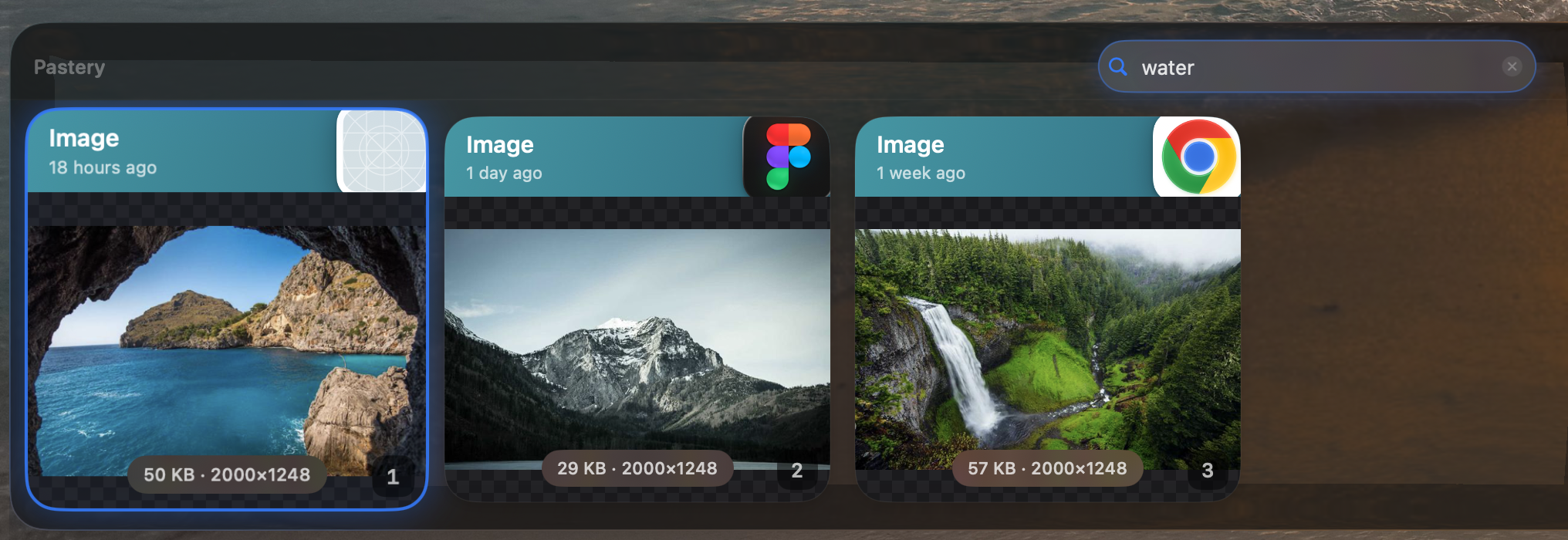
Pastery treats your clipboard as a history of your work, not a list of strings. Every copied item becomes a typed card: screenshots render as thumbnails, links pull rich previews, hex colors show as swatches, text shows a formatted excerpt. The app has a quick-access panel and a full-window Overview Mode — a filterable grid of your entire history with sidebar filters for content type, source app, and date range.
Two features make it different from every other clipboard manager: OCR search and text transforms.
Image handling
In Maccy, a screenshot is a grey label. The data is there, but you can't tell which image is which without pasting it somewhere to check. Most Maccy users work around this by pasting images before they scroll away.
In Pastery, copying a screenshot triggers two background jobs: a thumbnail is generated immediately, and Apple Vision reads every piece of text visible in the image and adds it to the search index. Days later, you can type "login error" or "border-radius" or "TypeError" and find the exact screenshot where those words appeared. Your clipboard history becomes something you can actually retrieve information from. See our dedicated guide on searching inside screenshots on Mac.
Text transforms
Hover over any text clip in Pastery and a small toolbar appears: uppercase, lowercase, title case, trim whitespace, format JSON, minify JSON, decode URL encoding, strip HTML. Click one; Pastery pastes the modified version. The original clip in history is unchanged.
This sounds minor until you're doing it ten times a day — copying API responses, adjusting case conventions between tools, decoding URL-encoded strings. It removes a constant small friction that adds up over a workday. Maccy has no equivalent. Developers should also read our best clipboard manager for Mac developers roundup.
Performance
Maccy uses under 40 MB of RAM, negligible CPU, and near-zero disk footprint. Pastery uses 80–150 MB due to thumbnail caches and the OCR index — all on background threads, so the UI stays fast regardless.
On any Mac from 2019 onwards — including every Apple Silicon machine — the difference is not perceptible. The RAM argument for Maccy matters only on genuinely constrained older hardware. If you're on a Mac bought in the last five years, this isn't a real consideration.
Pricing
| Plan | Maccy | Pastery |
|---|---|---|
| Free forever | Yes — full app | 7-day trial only |
| Monthly | — | $2.99 |
| Annual | — | $24.99 (~$2.08/mo) |
| Lifetime | Free | $59.99 |
| Open source | MIT | — |
Maccy is free — that's a real difference. Pastery's lifetime option at $59.99 reaches break-even in under 2.5 years at the annual rate, which is reasonable for a tool you use every workday. The 7-day trial lets you decide before committing to anything.
Who should use Maccy
- You are certain you only ever copy plain text and URLs — never screenshots
- You want zero cost and no trial period
- You're running macOS Catalina through Monterey on older hardware
- You specifically want open-source software
Who should use Pastery
- You copy screenshots, design assets, or any visual content
- You want to retrieve something specific from yesterday or last week
- You copy from multiple apps and want to filter by source or date
- You want text transforms — format JSON, decode URLs, fix case — before pasting
- You want a clipboard that works like a searchable record of your work, not a bare list
Frequently asked questions
Is Maccy better than Pastery?
Only in one specific scenario: you exclusively copy plain text and want to pay nothing. Outside of that narrow case, Pastery handles more of what people actually use a clipboard manager for.
Does Maccy support image clipboard history?
Maccy stores images but shows only a text label — no thumbnail, no preview. Pastery renders thumbnails and indexes image content using Apple Vision OCR, making screenshots searchable by text visible inside them.
Is there a free alternative to Pastery?
Maccy is the main one. It's fine for text-only clipboard history. Pastery offers a 7-day free trial with no credit card required, so it costs nothing to compare them yourself.
Which uses less RAM — Maccy or Pastery?
Maccy uses around 20–40 MB. Pastery uses 80–150 MB due to thumbnail caches and the OCR index. On modern hardware the difference is imperceptible. On older Macs with limited RAM, Maccy's footprint is a genuine advantage.
Does Pastery work on older macOS versions?
Pastery requires macOS 15 (Sequoia) or later. Maccy supports macOS 10.15 Catalina and above — it covers hardware that can't run Pastery.
Does Pastery sync between Macs?
No. Pastery is local-only — your clipboard stays on your Mac. Maccy is also local-only. Neither app offers cross-device sync.
Maccy alternatives worth considering
If Maccy isn't enough for your workflow, here are the main alternatives worth looking at:
- Pastery — The visual upgrade from Maccy. Native Swift, OCR search inside screenshots, text transforms, and a full Overview Mode. Starts at $2.99/mo with a 7-day free trial. The most direct step up from Maccy for anyone who copies more than plain text.
- Paste (pasteapp.io) — Visual clipboard history with iCloud sync across Mac, iPhone, and iPad. The right choice if cross-device clipboard is your main pain point. $29.99/yr, no lifetime option.
- Raycast — If you want a full Mac launcher and clipboard history in one app, Raycast includes clipboard history for free. Less focused than a dedicated tool, but zero extra cost if you're already using Raycast.
- Alfred — Clipboard history is part of the paid Powerpack (£34 one-time). Worth it only if you're already invested in Alfred's workflow ecosystem. See our full best clipboard manager for Mac roundup for a side-by-side comparison of all options.
The bottom line
Maccy works well for plain text and is free. That's the honest version of its case. Most people who install a clipboard manager, however, aren't only copying plain text — they're copying screenshots, design assets, JSON blobs, and URLs they want to transform before pasting.
Pastery handles all of it. Searchable image history via Apple Vision OCR, Overview Mode for scanning your clipboard visually, per-app and per-type filtering, and text transforms — none of which Maccy comes close to. The 7-day trial costs nothing to try.
Maccy is fine as a starting point. Most people don't stay there long. If you're choosing between visual clipboard managers instead, see Pastery vs. Paste or learn how to access clipboard history on Mac.