Guide
Why Your Mac Only Remembers One Thing You Copied (And How to Fix It)
macOS has had a clipboard since 1984. For 42 years it has held exactly one item. Here's why — and what you can do about it.
Written by the Pastery team.
The one-item problem
You're mid-task. You've just copied a long URL you need. Then you copy a filename to paste somewhere else. You go back for the URL — and it's gone. What you copied second has replaced what you copied first. The Mac has already forgotten.
This happens dozens of times a day to most Mac users, and it has happened since 1984. The original Macintosh shipped with a single clipboard — a decision that traces all the way back to the invention of copy and paste at Xerox PARC. That was reasonable for a computer with 128KB of RAM and no multitasking. It's less reasonable now. Our guide on how to access clipboard history on Mac covers every method to fix it.
Why Apple designed it this way
The system clipboard is intentionally simple. It's a shared data container that any app can read from or write to, using a handful of standardised types: text, image, file URL, rich text, and so on. The simplicity is what makes it universal — every Mac app, from TextEdit to Xcode to Figma, speaks the same clipboard language.
Keeping history at the OS level would raise real questions: how long to store it, what to exclude (passwords, for example), who has access. Apple's answer has always been: not our problem. That's left to third-party apps.
What macOS 26 added
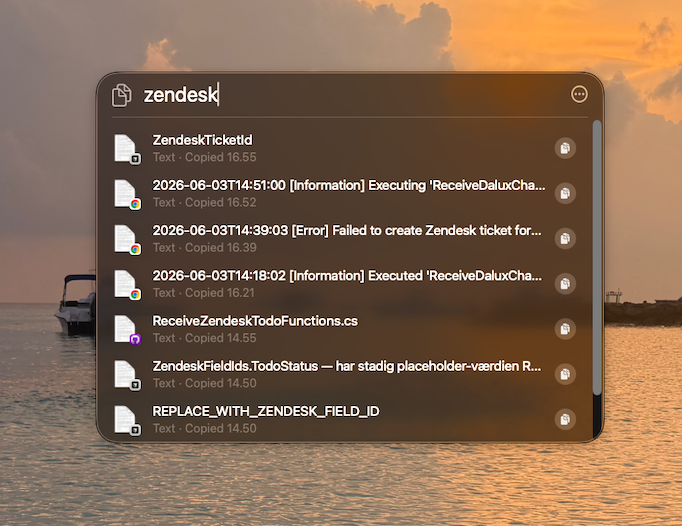
macOS 26 Tahoe was the first version to add any native clipboard history at all. Press ⌘Space in Spotlight and you'll see a "Clipboard History" section with recent text clips — up to 7 days worth. It's a genuine improvement over nothing. See our full macOS 26 clipboard history review for an honest assessment of what it covers and what it misses.
But it only stores text. Copy a screenshot, a file, a hex color from Figma — none of that appears. There's no image support, no per-app filtering, no way to search what you copied six days ago from a specific application. For light text-only use it's fine. For anyone who copies images regularly or needs to retrieve something older than a day or two, it doesn't quite cut it.
What a clipboard manager actually does
A clipboard manager sits in your menu bar and listens to the system clipboard. Every time you press ⌘C, it records what you copied — the full content, not just a reference. It builds a local database of everything, and makes it searchable.
The practical difference: you never have to worry about overwriting something before you've used it. Copy freely. When you need something from earlier — five minutes ago or five days ago — press a shortcut, type a word, and paste it.
There's no interference with normal ⌘C/⌘V behaviour. The clipboard manager adds a layer on top; it doesn't replace the system clipboard.
What to look for
Not all clipboard managers are the same. The things that matter most in practice:
- Image support. Most people copy screenshots more than they realise. An app that only handles text will feel incomplete fast.
- Search depth. A list of 20 items is not useful when you need something from three days ago. You want hundreds or thousands of items, searchable instantly.
- Password manager safety. Good clipboard managers detect when a password manager clears the clipboard and don't record those items.
- Native performance. A clipboard manager that slows your Mac down is worse than not having one.
The fix: Pastery
Pastery records everything — text, screenshots, links, colors, files. It's written in native Swift, so it doesn't create the kind of CPU noise you'd get from an Electron-based utility. And it won't loose any of your history: everything is stored locally in an encrypted database on your Mac, with no cloud component.
The part that changes how you work is Overview Mode: a full-window view of your entire clipboard history with a sidebar that filters by content type, source app, and date. Type anything into the search bar and Pastery searches text content and — uniquely — text visible inside screenshots via Apple Vision OCR. Something you copied from a specific app last Tuesday is a five-second search away. Learn more in our guide on searching inside screenshots on Mac.
Frequently asked questions
Why does Mac only save one clipboard item?
macOS uses a single system clipboard inherited from the original Mac in 1984. When you copy something new, it replaces the previous item — the OS has no history. A clipboard manager runs in the background and builds that history separately.
Does macOS 26 have clipboard history?
Yes — macOS 26 Tahoe added text-only clipboard history in Spotlight (Cmd+Space). It covers up to 7 days and text only. No images, no per-app filters. It's useful as a starting point, but not a replacement for a dedicated clipboard manager.
Can you have multiple clipboards on Mac?
Not natively. macOS provides one system clipboard. A clipboard manager maintains a full history of everything you've copied, so you can access any previous item at any time — effectively unlimited slots.
Will a clipboard manager slow down my Mac?
A well-written native app won't. Pastery runs all background processing — OCR indexing, thumbnail generation — off the main thread. On any modern Mac it uses under 150 MB of RAM and negligible CPU during normal use.
Is clipboard history safe? What about passwords?
Pastery detects when your password manager clears the clipboard and skips recording that item. All history is stored locally in an encrypted database on your Mac. Nothing is transmitted anywhere.