Guide
How to Access Clipboard History on Mac (3 Methods)
There are three ways to see what you've previously copied on a Mac. One is new in macOS 26, limited, and free. One has been there since forever but is basically useless. One actually works.
Written by the Pastery team.
Method 1: Finder's "Show Clipboard" (don't bother)
Open Finder, go to Edit in the menu bar, and you'll see "Show Clipboard." Click it and a small window appears showing what's currently on your clipboard — the one item you last copied.
That's it. No history. No scrolling back. It shows the current item only, which you already know because you just copied it. This has been in macOS since the beginning and has never been anything more than a curiosity. It is not what you're looking for. For the full story on why macOS only holds one item, see our guide on why your Mac only remembers one clipboard item.
Method 2: macOS 26 built-in history (text only)
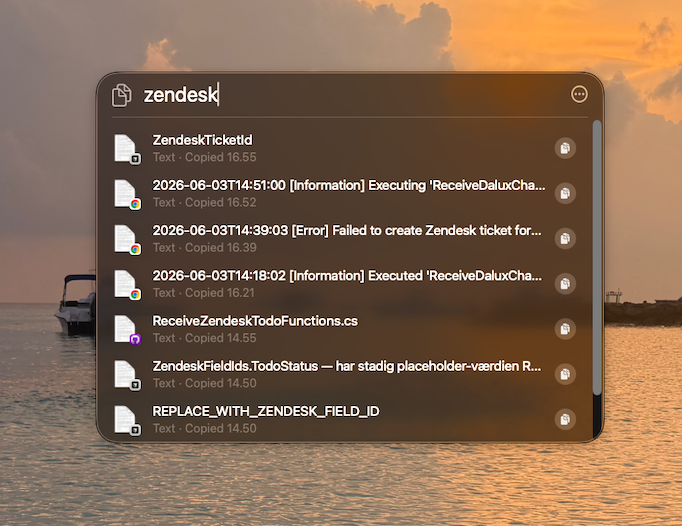
If you're on macOS 26 Tahoe, Apple added basic clipboard history to Spotlight. Press ⌘Space and you'll see a "Clipboard History" section alongside your search results. It lists recent text copies going back up to 7 days. Click any item to copy it again. We reviewed this feature in depth in our macOS 26 clipboard history review.
The limitations are significant: text only (no screenshots, no images, no files), no search within clipboard items, no per-app filtering, and anything older than 7 days is gone. It's useful if you copied a piece of text earlier in the day and need it again — and that's roughly the extent of it.
On macOS 13–15, this doesn't exist at all. The clipboard holds one item. Full stop. See why Mac only remembers one thing you copied for the background.
Method 3: A clipboard manager (the one that works)
A clipboard manager runs in your menu bar and records everything you copy — permanently, until you clear it. Every piece of text, every screenshot, every link, every file path. When you need something from earlier, you press a keyboard shortcut, search or scroll, and paste it.
This is how professional Mac users have handled clipboard history for years, long before Apple added anything to the OS. And for anyone who copies images or needs to retrieve items from more than a day ago, it's still the only real solution. Compare options in our Pastery vs. Maccy and Pastery vs. Paste guides.
What to look for
The basic feature — searchable text history — is present in every clipboard manager, including the free ones. The things that seperate a good one from a great one:
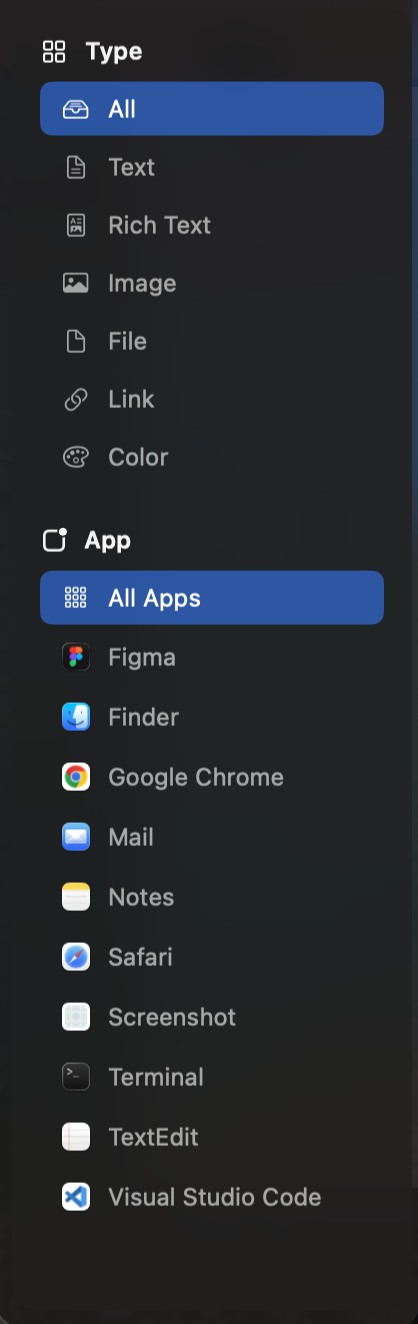
- Image support with thumbnails. Not just storing images, but actually showing them as previews so you know which one you're picking.
- Deep history. A limit of 200 items sounds generous until you're a heavy user a week in.
- Per-app and per-type filtering. Finding something you copied from Figma last Thursday is very different from scrolling through a plain list.
- Password manager awareness. Clipboard managers should not record what your password manager puts on the clipboard. All good ones handle this.
Pastery
Pastery is a native macOS clipboard manager built in Swift. It records everything and stores it locally — no cloud, no account. Press ⌘⇧V (or your own shortcut) and Overview Mode opens: a full-window visual grid of your clipboard history with filters for content type, source app, and date range.
The feature that gets the most use in practice: search works inside screenshots. Every image you copy is indexed by Apple Vision OCR in the background. Type an error message you vaguely remember screenshotting and Pastery finds it, even if it was copied two weeks ago. Read more in our guide on how to search inside screenshots on Mac.
The 7-day trial is free and requires no credit card. If you've been losing clipboard items for years, that's probably enough time to decide.
Frequently asked questions
How do I see my clipboard history on Mac?
On macOS 26: press Cmd+Space and look for "Clipboard History" in Spotlight — text items only, up to 7 days. On any macOS version: install a clipboard manager like Pastery. Press its shortcut and your full history is instantly searchable, including images.
What is the shortcut for clipboard history on Mac?
macOS has no built-in shortcut for clipboard history before macOS 26. With a clipboard manager, you set your own — Pastery defaults to Cmd+Shift+V. In macOS 26 Spotlight, clipboard history is accessible via Cmd+Space.
How far back does Mac clipboard history go?
macOS 26's built-in stores text up to 7 days. Pastery stores everything until you clear it — typically hundreds of items going back weeks or months, depending on how much you copy.
Can I recover something I copied and then overwrote?
Only if a clipboard manager was running when you copied it. macOS itself does not retain overwritten clipboard items. With Pastery installed, the previous item stays in history and is searchable immediately.
Does clipboard history include screenshots?
macOS 26's built-in does not — text only. Pastery records all content types: text, screenshots, links, colors, and files. Screenshots are stored as thumbnails and indexed via OCR so you can search by what's inside them.