Review
macOS 26 Clipboard History: What It Does, What It Doesn't, and Whether You Still Need a Third-Party App
After 42 years of a single clipboard, macOS 26 finally added clipboard history. It's a start. Here's what Apple built, what it left out, and whether you still need a third-party app.
Written by the Pastery team. We built a clipboard manager, so take our perspective for what it is — but we've tried to be accurate about what Apple shipped.
What Apple actually shipped
macOS 26 Tahoe, announced at WWDC 2026, added the first native clipboard history in the history of the Mac. It lives inside Spotlight: press ⌘Space and you'll see a "Clipboard History" section alongside your search results, listing recent text copies going back up to 7 days.
Click any item and it loads back onto your clipboard, ready to paste. That's the entire feature. No keyboard shortcut to a dedicated panel, no visual browser, no settings beyond the system's default behavior.
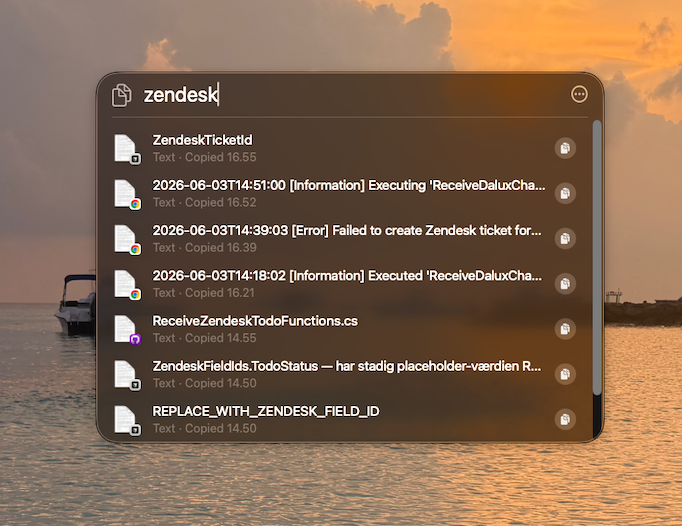
How to use it
You don't need to enable anything. On macOS 26, clipboard history is on by default. Press ⌘Space, look for the Clipboard History section, and click whatever you need. If you want to search within your history, type in Spotlight and it'll filter — though it only searches the text content of clips, not anything else.
There is no separate keyboard shortcut that jumps directly to clipboard history. You go through Spotlight every time.
The limits
Apple made deliberate trade-offs here, and it's worth being clear about what they are:
- Text only. Screenshots, images, files, hex colors, rich text with formatting — none of it is retained. If you copy a screenshot, it doesn't appear in Spotlight history at all. You'll loose it the moment you copy something else.
- 7-day maximum. There's no way to extend this. Anything older than a week is gone, automatically, with no archive or export.
- No filters. You can't narrow history by which app you copied from, by content type, or by date range. It's one flat list in chronological order.
- No transforms. You get the item exactly as it was copied. No case adjustment, no JSON formatting, no URL decoding before you paste.
- Spotlight only. There's no way to browse clipboard history outside of the Spotlight interface, and no option to change the shortcut or open it in a dedicated window.
Who it's enough for
Be honest with yourself here. If your clipboard use looks like this — mostly text, rarely more than a few days old, no screenshots — the built-in feature probably covers you and you don't need anything extra:
- You write or edit documents and occasionally need to recover text you copied and overwrote
- You copy URLs and reference text for research, all within the same working session
- You're not a developer, designer, or anyone who copies a lot of non-text content
For that use case, it's genuinely good that Apple built this. Maccy has been filling this gap for free for years, and now the OS handles the basics natively. Compare both approaches in our Pastery vs. Maccy guide.
Who still needs a clipboard manager
The majority of people who look for a clipboard manager aren't in the "text only, 7 days" category. They're copying screenshots, design assets, API responses, error logs — and they need to find something specific from last week, not just the last few hours. Read how to access clipboard history on Mac for all three methods, or how to search inside screenshots if images are your main pain point.
Pastery handles all of this: text, screenshots with OCR indexing, links, colors, files. Overview Mode lets you filter by content type, source app, and date range. And the 7-day limit doesn't exist — history stays until you clear it. For a broader comparison of options, see our best clipboard manager for Mac developers roundup.
macOS 26's built-in clipboard history is a welcome first step. It's also a fairly narrow one. If you've ever needed a screenshot you copied three days ago and couldn't find it, that problem doesn't go away with Spotlight history.
Frequently asked questions
Does macOS 26 have clipboard history?
Yes — text-only, up to 7 days, accessible through Spotlight (Cmd+Space). Images, files, and other content types are not included.
How do I access clipboard history in macOS 26?
Open Spotlight with Cmd+Space. A Clipboard History section appears showing recent text copies. Click any item to load it back onto your clipboard, then paste as normal.
Is macOS 26 clipboard history enough?
For text-only, same-day use — probably yes. For screenshots, deeper history, per-app filtering, or text transforms, you still need a dedicated clipboard manager.
Does macOS 26 clipboard history include images?
No. Only text. Screenshots and other non-text content types are not retained by the built-in feature.
How long does macOS 26 keep clipboard history?
Up to 7 days. Items older than that are automatically deleted. There is no way to extend this limit in System Settings.